How do you integrate PayTR with WooCommerce, and what should you watch for?
Installing PayTR's WooCommerce plugin takes minutes. When a paid order is not confirmed, the cause is almost always the notification URL.

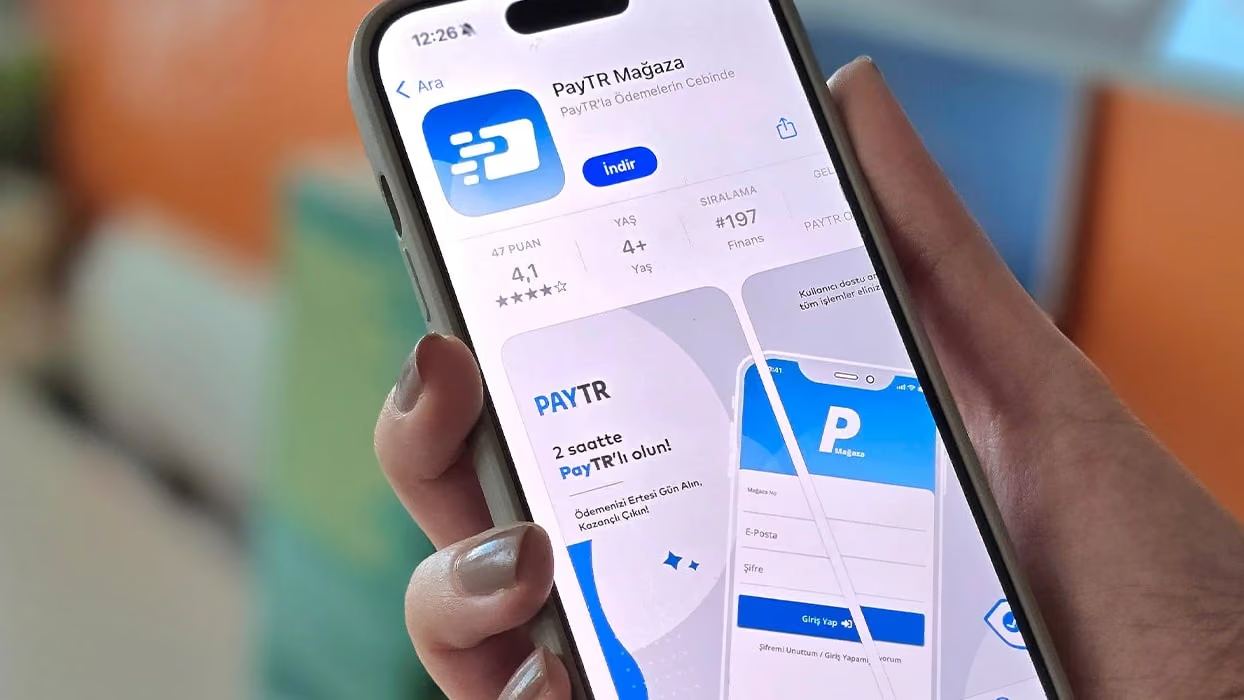
The shortest way to connect PayTR, a Turkish payment provider, to WooCommerce is the plugin PayTR publishes itself. You install it, enter three credentials from the PayTR panel, set the notification address in the PayTR panel, and go live after a few test payments. The step most often skipped is the last one, the notification address. When money is taken from a customer but the order is not confirmed, it almost always comes from there.
How do you set up PayTR on WooCommerce?
PayTR's plugin sits in the WordPress plugin directory as "PayTR Sanal POS WooCommerce – iFrame API", published by PayTR itself. The "iFrame" in its name means the payment form opens in PayTR's own window inside your site, so card details never touch your server. Since version 3.0 the plugin supports WooCommerce's new order storage and the block-based checkout.
The plugin asks for three things: the store number, the store password and the store secret key. You find them in the PayTR merchant panel, on the "Bilgi" (information) page, under the API integration details. Treat all three like a password: do not pass them around by email, paste them only into the plugin's settings.
Next, in the PayTR panel, go to the notification URL setting under Settings, choose WooCommerce, and save it with https if your site has SSL. This setting is not on the plugin's screen; it lives in the PayTR panel, and it is the step people forget most. Then try one or two payments in test mode; PayTR's payment window fills in the test card for you. If everything works, apply from the panel's live mode page and PayTR reviews it and lets you know.
One small warning: the plugin's page in the WordPress directory notes that it has not been tested with the last three major WordPress releases, and its reviews are mixed. Trying it on a copy of your site first is a good habit.
What is PayTR's notification URL, and why is a paid order not created?
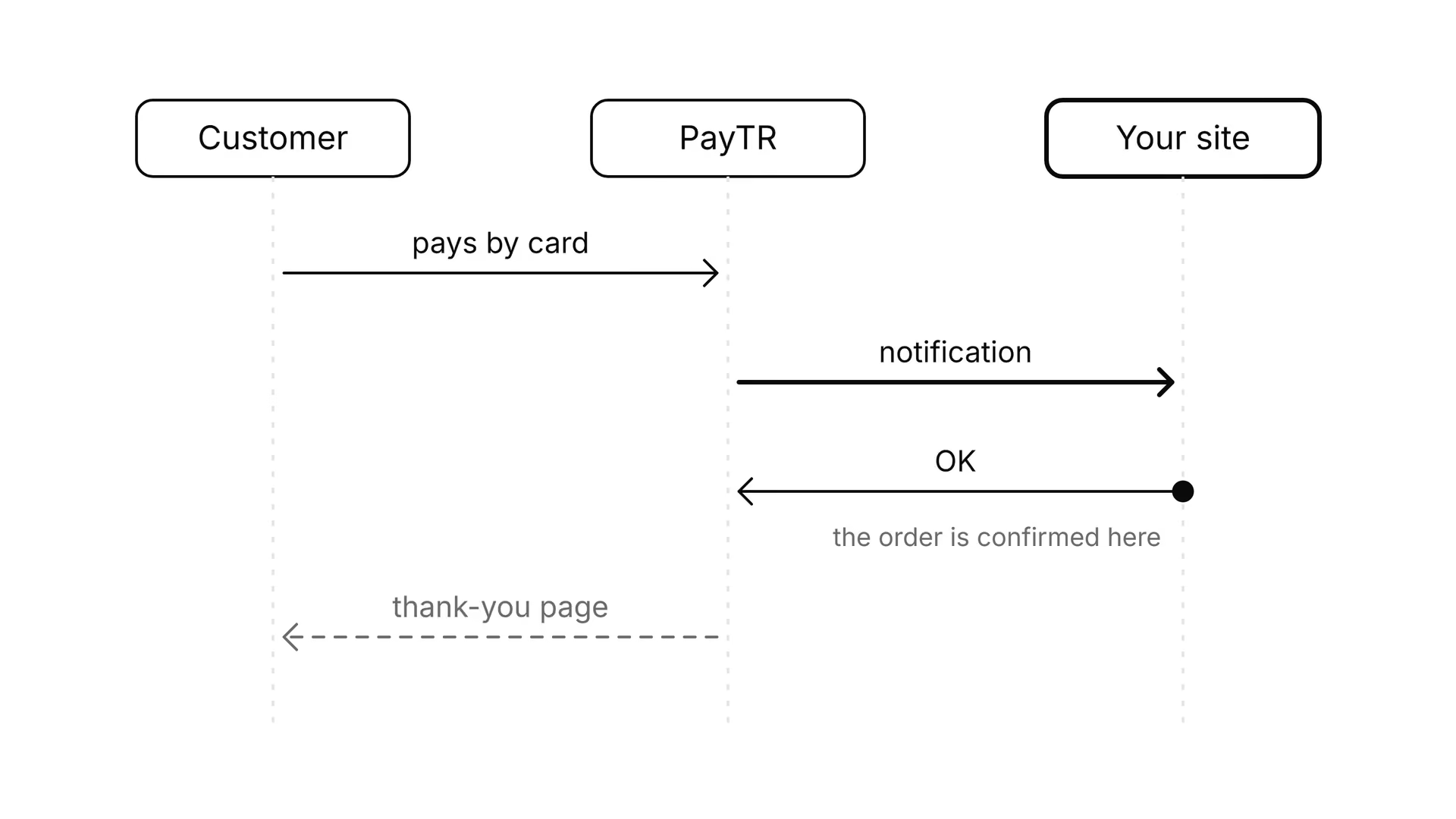
After paying, the customer returns to your site and sees a thank-you page. Most people assume this return confirms the order, but it does not. According to PayTR's documentation, what confirms the order is a separate message PayTR's server sends to your site's notification address after the payment. Your site receives it, confirms the order and answers PayTR with "OK". Even if the customer's browser closes before returning from the payment page, the order is confirmed this way.
If that message cannot reach your site, or does not get "OK" back, the payment stays "in progress" in the PayTR panel and the order is not confirmed in WooCommerce. PayTR tries again a minute later; if it still gets no answer, it stops the notification. Once the problem is fixed, you restart the stopped notifications from the "store notifications" section of the panel. The reasons PayTR lists are: no notification address set at all, access to that address being restricted in any way (a maintenance mode or a security plugin that asks for a login, for example), and the site printing anything before or after the "OK". A plugin adding a single blank line or a warning to the page can be enough. Because the notification is retried, the same payment can reach your site more than once; how to keep that from writing the order twice is in the duplicate orders note. We do this setup and the notification tests as PayTR integration work.
How are instalments and refunds handled?
You manage instalment options on the instalment settings page of the PayTR panel; decisions such as offering instalments at the cash price are made there. If you want to show the instalment table on product pages, PayTR has a separate plugin for it.
For refunds, follow one rule: refund from the order page in WooCommerce. According to PayTR's module page, refunds made in the PayTR panel are not reflected in the WooCommerce order. The money goes back, but your order and stock records stay as if nothing happened. For instalment payments, PayTR refunds the instalment surcharge itself.
PayTR or iyzico?
Both have an official WooCommerce plugin and work in a similar way: iyzico's plugin also uses a notification address set in the iyzico panel. The real difference is pricing. iyzico publishes its rates; on 23 October 2026 iyzico's page listed 4.29% + 0.25 TL for business sellers with monthly sales above 20,000 TL, with no fixed monthly fee. PayTR's virtual POS page shows a rate starting at 2.19%, but that rate is for the model in which the money reaches your account seven days later; the actual rate is quoted according to your monthly volume and business model, and PayTR charges no setup or monthly fee. The only honest way to compare is to ask both for a quote with your own monthly sales. Along with the commission, ask how many days it takes for money to reach your account and how the instalment surcharge is calculated. Whether to get your virtual POS from a bank or a payment institution is covered in the virtual POS note.
As for "is PayTR reliable?", there is a clear place to check. Turkey's central bank publishes the list of payment and electronic money institutions, and PayTR is on its list of electronic money institutions. The check takes a few seconds for any payment company you plan to work with.
Payment does not stand alone; if the order also needs an invoice, think about the invoicing moment together with the payment moment, as we explain in our note on e-invoice integration. If you are building an online store where payment, invoicing and shipping work together, planning them together from the start is far easier than patching them later.
Updated: