How do you set up a product sold by the metre in an ERP? Cable, belts, chain and rolls
Keep stock in metres and make the roll a purchase unit only. Units, decimals, offcuts and the MTR invoice code in Odoo and SAP Business One.

Keep stock in metres and use the roll only as a purchase unit. You buy cable in 100-metre rolls but sell a customer 3.5 metres. For the ERP to follow that, three things are enough: make the metre the base unit, link the roll to it as "100 metres", and allow decimals in quantities. Odoo and SAP Business One both do this out of the box. You don't need an extra module, only the right setting and properly set up units.
Which unit should stock be kept in?
The smallest unit you sell in. For cable, belts and chain, that's the metre.
If you keep stock in rolls, every sale turns into a fraction. 3.5 metres is 0.035 of a 100-metre roll. Odoo stores quantities with two decimal places by default. 0.035 doesn't fit that precision and gets rounded. On one sale the difference is small, but it adds up with every order. On stocktake day the metres on the shelf and the metres in the ERP don't match, and nobody can find where the gap came from.
With stock in metres the problem goes away. You sell 3.5 metres and 3.5 metres leave stock.
How do you buy rolls and sell metres?
The logic is the same in both systems: one base unit, and other units that convert to it.
In Odoo: In the Inventory app, open Configuration > Settings. Tick Units of Measure & Packagings in the Products section and save (Odoo documentation). From Odoo 19 on there's no separate category screen. Each unit links to a reference unit with a factor. You create a unit called "Roll 100 m", with m as the reference unit and a factor of 100. On the product, the stock and sales unit stays m. In the Purchase tab you choose the roll as the purchase unit. You order 5 rolls from the supplier, and on receipt Odoo puts 500 metres into stock.
On Odoo 17 or 18 the same job is done with unit of measure categories. There, two units convert only if they're in the same category (Odoo 18 documentation).
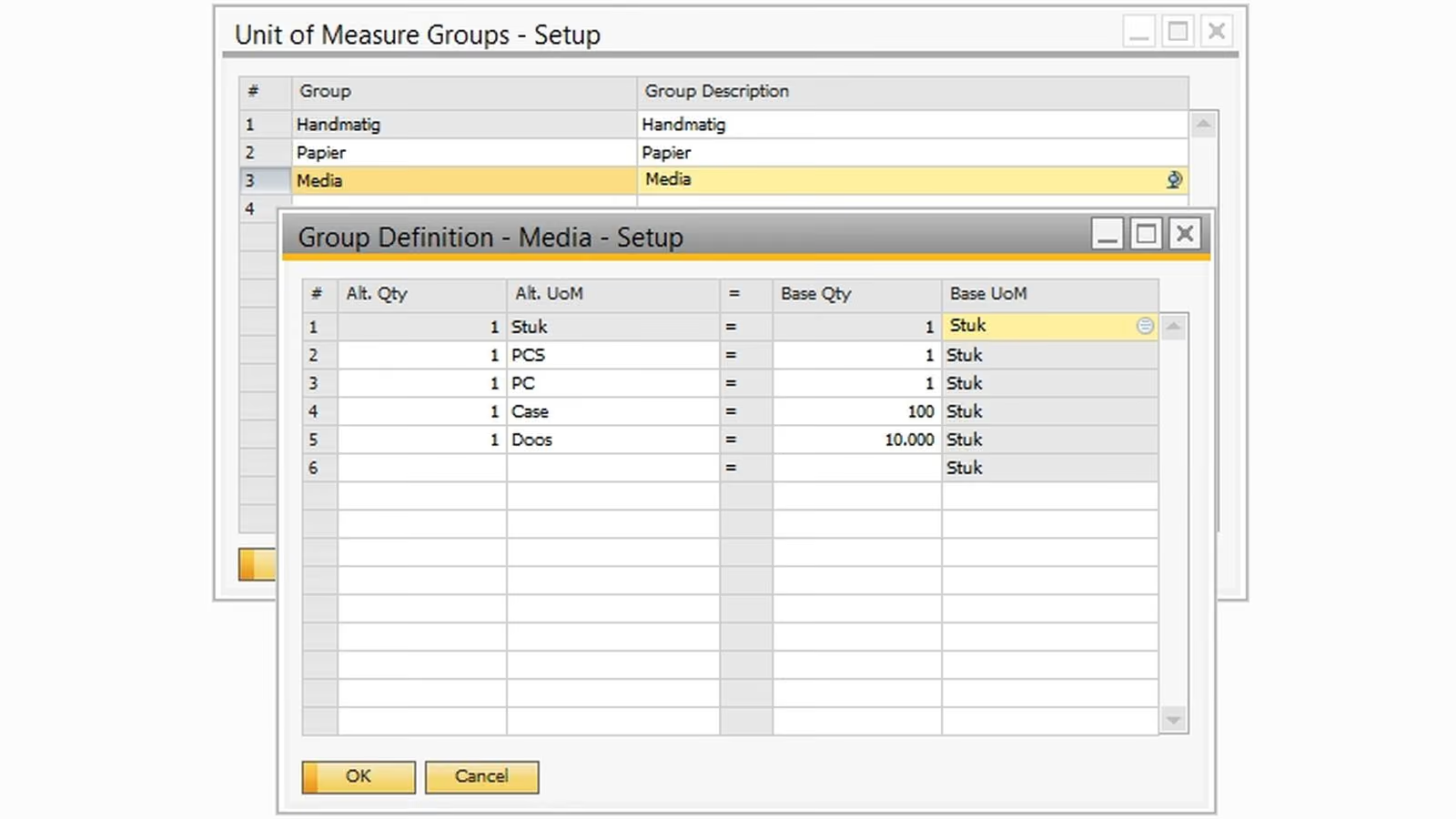
In SAP Business One: Under Administration > Setup > Inventory > Unit of Measure Groups you create a group for this kind of product (SAP Help). The first row is the base unit, the metre. Below it you add the roll, with 1 in Alt. Qty and 100 in Base Qty. That reads as "1 roll is 100 metres". On the item master data, you set the inventory unit to metre, the purchasing unit to roll and the sales unit to metre.
SAP's own training gives a clear warning: once an item has transactions, its inventory unit can't be changed (SAP Learning). Set the unit up correctly before the first goods receipt. Fixing it later usually means creating a new item and moving the stock to it. Moving existing stock from rolls to metres, or setting units up from scratch, is part of our ERP setup work.
How many decimal places do you need?
As many as your cutting step. If you sell in 10 cm steps, one decimal is enough. If you sell by the centimetre, you need two.
In Odoo this is a single global setting. In developer mode, it's the Product Unit record in the Decimal Accuracy list under the Technical menu. Its default value is 2 (Odoo source code). It affects every product, so try a change on a test database before touching a live system.
In SAP Business One the setting is under Administration > System Initialization > General Settings > Display. You choose between 0 and 6 decimal places for quantities. Be careful: after the first journal entry is posted, you can only increase the number of decimals, never reduce it (SAP Help).
How do you track the offcuts left after cutting?
Track each roll as its own lot. In Odoo you turn on the Lots & Serial Numbers setting and set the product to be tracked by lots (Odoo documentation). In SAP Business One you set Manage Item by to Batches on the item master data (SAP Help). That way you can see how many metres are left on each roll. When a customer asks for 12 metres, you don't start cutting from a roll with 1.5 metres left on it.
At the end of a roll there's a piece too short to sell. What happens to it is your call. Either you sell it at a discount as a separate "offcut" product, or you scrap it. In Odoo, scrap is recorded under Operations > Scrap and the piece leaves sellable stock (Odoo documentation). What matters is recording it at the moment of cutting. If you don't record offcuts, the metres in the ERP and the metres on the shelf drift a little further apart every month.
How should an online store let customers choose metres?
The price is shown per metre, and the quantity box takes metres. The box needs three values: a minimum (say 1 metre), a step (say 0.5 metres) and a maximum (the metres in stock). The browser's number input supports these with min and step. The default step is 1, so the box accepts only whole numbers unless you change it (MDN). The total should update live next to the box. In the cart it should say "3.5 m", not "3.5 items".
The check doesn't stay in the browser. The server also verifies that the quantity is above the minimum and fits the step. The order then reaches the ERP in the same unit, metres.
In WooCommerce the quantity box works in whole numbers by default. Stock amounts are converted to integers and the step is 1 (WooCommerce source code). Decimal metres take code or a plugin. Some stores get around this with "1 item = 10 cm". It works, but the customer sees "35 items" in the cart, and every order going to the ERP has to be converted back to metres. I think the right way is to actually sell metres.
Which unit code goes on the invoice?
In Turkey's e-invoice system (e-fatura), every line's quantity carries a unit code. In the UBL-TR code list guide published by the Turkish Revenue Administration (GİB), the code for metre is MTR and the code for a piece is C62. As of November 2026, the current version is 1.43, dated July 2026. Units not on that list are taken from the UN/ECE unit of measure list. The guide is inside the UBL-TR 1.2.1 guides package on GİB's e-document site. Outside Turkey, Peppol and other UBL-based e-invoicing use the same UN/ECE codes.
Every unit in the ERP has to map to one of these codes. Odoo has a catch here. Its Turkish e-invoice module, which works through Nilvera, takes the unit code from Odoo's shared UBL module. That module only knows Odoo's built-in units: the built-in m unit goes out as MTR. If a unit you created has no mapping, the line gets C62, meaning "piece" (Odoo source code). So for a product sold by the metre, use Odoo's built-in m unit and don't create a new unit called "Metre". The roll is only used for purchasing, so it never appears on a sales invoice. We check the units and this mapping together during an Odoo implementation.
In SAP Business One, how units map to codes depends on the e-invoicing connector you use. During setup, open the mapping table once and check that the metre goes out as MTR. The ways a site connects to SAP Business One are on our SAP Business One integration page. How e-invoicing connects to the ERP is covered in the e-invoice integration note.