Why is my WordPress site slow?
WordPress itself is rarely slow; what slows a site down is usually what was added later. How to measure the cause and where to start.


WordPress itself is not slow; what slows a site down is usually what we add to it. Cheap, crowded hosting, an old PHP version, no cache, plugins that load their own code on every page, a heavy page builder and photos uploaded straight from a phone. HTTP Archive's 2025 report says the same: the speed gap between WordPress sites comes more from how they are set up than from the core. So the first job is not to guess the cause but to measure it.
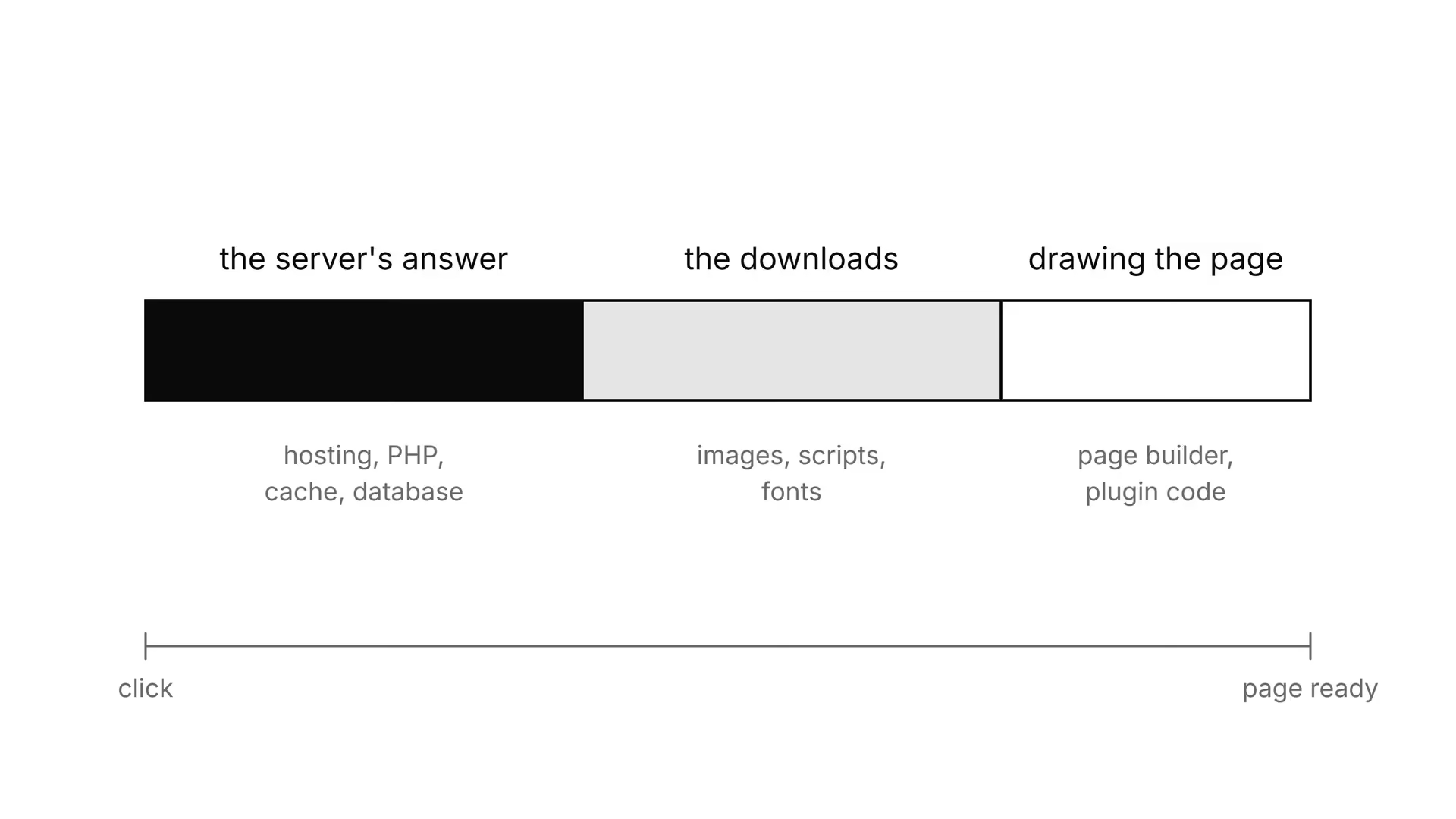
How do I measure my site's speed?
The first stop is Google's PageSpeed Insights. It shows two separate results: a test run the tool makes on the spot, and measurements from the real visitors of the last 28 days. Google looks at the second. By Google's measures, on a good page the largest content appears within 2.5 seconds, a click gets a response within 200 milliseconds, and nothing shifts as the page loads (CLS below 0.1).
The second stop is inside WordPress: the Site Health screen under Tools in the admin. It lists critical issues and recommended improvements, and it also tells you whether there is a page cache and how fast the server responds. To see how much work each plugin does, there is the Query Monitor plugin: it shows the database queries on every page, grouped by plugin and theme.
What slows things down on the server?
First, hosting and the PHP version. WordPress now recommends PHP 8.3 or later and MySQL 8.0 or MariaDB 10.11 or later. PHP 7.4, 8.0 and 8.1 no longer get security updates. To be honest, upgrading PHP will not make a site fly on its own; the main reason is security. But old PHP is often the sign of an old, crowded server. We can take on hosting and the PHP version with you as server setup and management work.
Then the cache. Without one, PHP runs and the database is queried for every visitor; a page cache serves a ready copy of the page instead. Since WordPress 6.1, the Site Health screen warns you when there is no page cache and the server's response takes longer than 600 milliseconds.
Then the database. Some options are loaded together on every page request, and what deleted plugins leave behind mixes in with them. Since WordPress 6.6, Site Health warns when their total passes 800 KB. Old versions of posts also pile up in the database; WordPress keeps every revision by default, and a setting can limit them.
What slows down the page itself?
Page builders such as Elementor are not bad, but they have a price. According to HTTP Archive, they produce more complex page structures and larger code files. Google's measuring tool Lighthouse warns above about 800 elements on a page and reports an error above 1,400.
With plugins, the problem is not their number but what they do. A single plugin that loads its script on every page can slow a site more than ten that show visitors nothing. You find this out with Query Monitor, not by guessing.
With images, what WordPress does and does not do is clear. Since 5.5 it loads images only as they come into view; it has supported WebP since 5.8 and AVIF since 6.5. But it does not convert the photos you upload into these formats on its own; a five-megabyte phone photo can stay five megabytes on the site.
Why are the admin panel and WooCommerce slow?
The admin panel does not use the page cache; every click runs PHP and queries the database. That is why a problem on the server or in the database is felt in the admin first; you can turn Query Monitor on for admin pages too.
A known load in WooCommerce is the cart being refreshed on every page. Since WooCommerce 7.8 this code is no longer loaded on every page, but if your theme shows a mini cart in the header on every page, it may still be. WooCommerce itself notes that this can put a heavy load on the server.
Where should I start?
Go in order. First measure with PageSpeed Insights and Site Health. Then look at hosting and the PHP version, set up a page cache and shrink your photos. Last, go through the plugins one by one with Query Monitor. The order puts the cheapest and most effective steps first; removing plugins is the last and most careful step. If the site is still slow after all that and your content does not change often, a static site is an option too.